To pay school fees using M-Pesa, open the M-Pesa menu, choose Lipa na M-Pesa, then Pay Bill, enter your school’s business (Paybill) number, enter the account number the school gave you (usually your child’s admission number), enter the amount and your M-Pesa PIN, and confirm. You will get an M-Pesa confirmation SMS straight away; keep it until the school’s receipt arrives.
Quick answer: Lipa na M-Pesa, Pay Bill, business number = your school’s Paybill, account number = what the school tells you (often the admission number), amount, PIN, confirm. Then check that the payment shows on your child’s fee balance.
How to pay school fees via M-Pesa, step by step
Safaricom describes three ways to pay into a Paybill: the SIM toolkit, the M-Pesa app and USSD. Each asks for the same three things: the business number, the account number and the amount.
On the SIM toolkit (M-Pesa menu)
- Open the M-Pesa menu on your phone.
- Select Lipa na M-Pesa.
- Select Pay Bill.
- In Enter Business Number, type your school’s Paybill number. The school provides this number.
- In Account Number, type the reference the school has asked for. Safaricom notes this may be the learner’s name or registration number, depending on how the school set up its Paybill.
- Enter the amount.
- Enter your M-Pesa PIN.
- Check the details and confirm the transaction.
On the M-Pesa app
Open the M-Pesa app, select Pay, then Paybill. Enter the business number, the account number and the amount, then complete the payment with your M-Pesa PIN.
By USSD (*334#)
Dial *334# from your M-Pesa registered Safaricom line, select Lipa na M-Pesa, then Pay Bill, and enter the business number, the account number and the amount. Complete the payment with your PIN. This works on any phone, including one without internet.
How do I find my school’s Paybill number?
The safest source is the school itself: the current term’s fee structure, the school’s letter or circular, or the bursar’s office. Safaricom’s own advice is to ask the school bursar to confirm the business number and how each learner is identified.
Safaricom also offers a lookup: dial *234#, follow the instructions for finding a business number, and enter the school’s name as the keyword. Treat the result as a check, not a replacement for the school’s own fee structure, because some schools collect through a bank’s Paybill rather than their own.
Which account number should I use?
This is where most payment problems start. The business number identifies the school. The account number tells the school which child the money is for.
Most Kenyan schools ask parents to use the learner’s admission number as the account number, but not all do. Some use a name, some add a prefix or a school code, some give each family a reference. Use exactly what is printed on the fee structure, the school’s letter or the term circular. If you are not sure, ask the bursar before you pay, not after.
The admission number is the school’s own number for your child. It is not the same as the learner’s UPI on the national register (what KEMIS is and what the UPI does) or a KNEC assessment number, so do not use either of those unless the school asks you to.
Paying school fees through a bank Paybill
Not every school has its own M-Pesa Paybill. Safaricom’s Lipa Karo guidance notes that many schools collect through Paybill accounts run by partners, naming Kenya Commercial Bank, Co-operative Bank and Pesapal as examples. In that case the business number belongs to the bank, and the account number is often a code for the school combined with your child’s admission number. National Bank of Kenya’s school fees page, for example, asks for the school code and the admission number. The format is set by the bank and the school.
The M-Pesa steps are the same; only the numbers change, so copy both from the school’s fee structure. Paying from your bank’s app or at a branch works the same way: quote the admission number so the school can match the payment.
What happens after I pay?
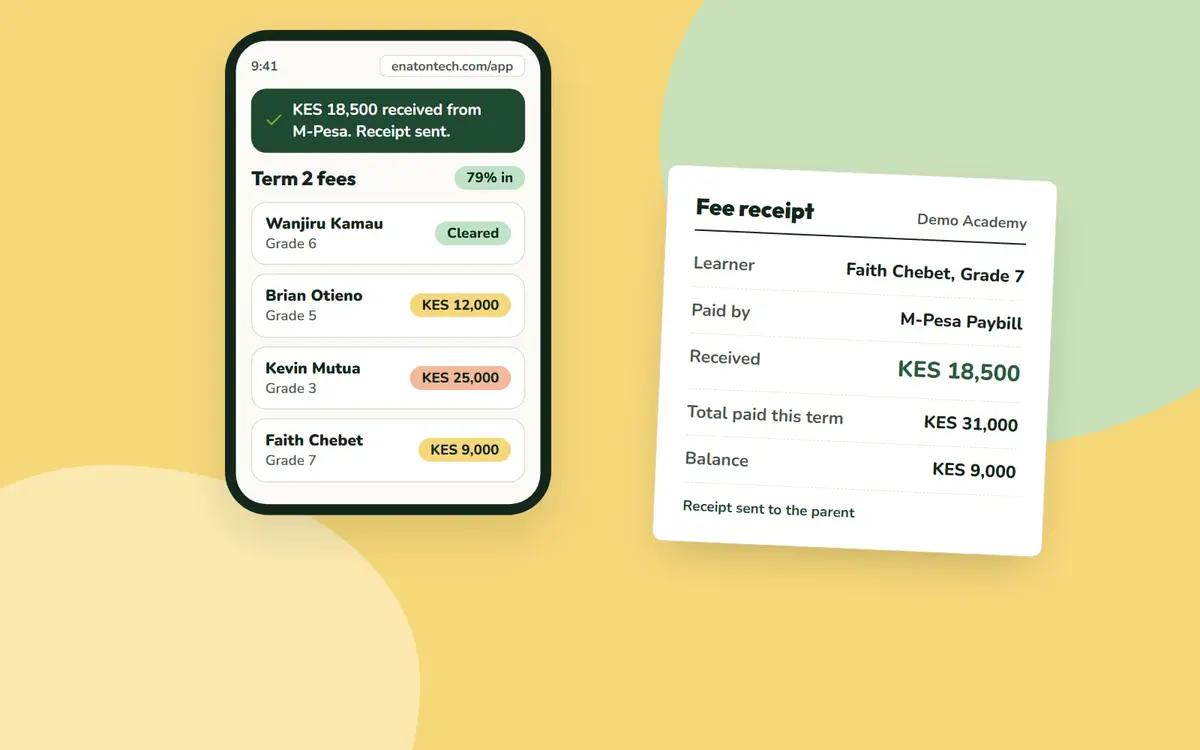
Safaricom says two notifications go out:
- You get the standard Pay Bill confirmation SMS immediately. It shows the transaction code, the amount, the school’s name and the account number you typed.
- The school receives a real time confirmation of the payment, showing who paid and for which account.
Keep the M-Pesa message until the school’s receipt arrives and the balance is correct. The transaction code at the start of it is your proof of payment.
What happens next depends on the school’s system. Some post the payment and send a receipt within minutes; others match payments by hand, so the balance takes longer to update.
Is there a charge for paying school fees by M-Pesa?
It depends on the school’s Paybill. Safaricom offers organisations different Paybill tariffs to choose from, so whether the parent pays a transaction charge, and how much, is set by the arrangement the school or its bank chose. If you are unsure, ask the bursar before you pay.
How to check your school fees balance
There is no single national place to check a school fees balance, because each school keeps its own accounts. The usual options are:
- The school’s parent portal or app, if the school has one. This normally shows the balance, the fee structure and every payment received. Our guide to what a school parent portal is and how to log in explains how they work.
- An SMS or statement from the school. Many schools send balances at the start and middle of term.
- The bursar’s office, by phone or in person. Have the admission number ready.
- The fee statement on the term letter or report card, if your school prints one.
Check the balance a day or two after paying, especially near the start of term. If your payment does not appear, contact the school with the M-Pesa transaction code.
Common mistakes when paying school fees by M-Pesa
Wrong account number
A typing error in the admission number can put the money against another learner, or against no learner at all. The school still receives it, but someone has to find it and move it. Read the number back before you enter your PIN.
Paying for two or more children in one payment
If you have siblings at the same school, the simplest approach is one payment per child, each with that child’s own account number. A single payment with one admission number will usually be posted to that one child, and the school then has to split it by hand. Some schools have their own rule for siblings, so ask.
Wrong Paybill number
Schools sometimes change their Paybill, or have more than one for different purposes such as fees and transport. Use the number on the current term’s fee structure, not one from an old message or a WhatsApp forward.
Sending money to a phone number
Fees sent with Send Money to a teacher’s or bursar’s personal phone are not paid into the school’s account and are hard to trace. Pay only to the school’s official Paybill or bank account.
Can I reverse a school fees payment made to the wrong Paybill?
Not by yourself. Safaricom’s do it yourself reversal, where you forward the M-Pesa message to 456 within 24 hours, covers person to person transfers between Safaricom lines, not payments to a Paybill. If you paid the right school with the wrong account number, the school has the money and can move it. If you paid the wrong business number altogether, contact Safaricom straight away with the transaction code.
Who do I call if something goes wrong?
For a payment that left your M-Pesa but does not show at the school, contact the school bursar first with your transaction code: the school can see what arrived on its Paybill. For problems with M-Pesa itself, Safaricom’s Lipa Karo guidance is to call its customer care on 100 from your Safaricom line, or email customercare@safaricom.co.ke. Its Paybill guidance adds 200 for postpaid lines.
How Enaton helps
In schools that run on Enaton, parents pay by M-Pesa or from any bank in Kenya, and the payment reaches the school in real time, on the right child’s account. The receipt arrives in about a minute and the balance updates at the same moment, so a parent who has paid is never chased by a reminder. Every child’s balance and receipts sit in one parent portal account, and a parent can pay by M-Pesa from inside the portal without remembering a Paybill or account number.
For parents, see what Enaton gives parents. School leaders can see how M-Pesa school fee payments work in Enaton, read our guide for bursars on how to reduce school fees arrears, or book a demo. Want this at your child’s school? Share this guide with the head teacher, or tell them about Enaton.
FAQ
Can I pay school fees using M-Pesa if my school has no Paybill?
Only through another official channel the school gives you, such as a bank’s Paybill that credits the school’s account. Safaricom notes that the school must be registered for the service, and a school that is not can apply for a Paybill. Do not send fees to a personal number.
What account number do I use to pay school fees via M-Pesa?
Use the reference your school gives you. For most schools this is the learner’s admission number, but some use a name, a school code plus admission number, or a family reference. It is printed on the fee structure or the school’s letter.
How long does an M-Pesa school fees payment take to reflect?
M-Pesa confirms to you immediately and notifies the school in real time. How quickly your child’s balance updates depends on the school’s system: some post it automatically within minutes, others update balances by hand.
How do I check my child’s school fees balance?
Through the school’s parent portal if it has one, an SMS or statement from the school, or by asking the bursar with the admission number. Check a day or two after each payment.
I used the wrong account number. What should I do?
Contact the school bursar with the M-Pesa transaction code, the amount, the date and the correct admission number. The money reached the school’s Paybill, so the school can move it to the right learner.
Can I pay school fees by M-Pesa from a phone that has no internet?
Yes. The SIM toolkit menu and *334# both work without data. Only the M-Pesa app needs internet.
Sources
- Safaricom, “Lipa Karo” frequently asked questions: safaricom.co.ke
- Safaricom, “Pay to Paybill”: safaricom.co.ke
- Safaricom, “M-Pesa Paybill” frequently asked questions: safaricom.co.ke
- National Bank of Kenya, “School Fee Payment”: nationalbank.co.ke
- Safaricom, “M-Pesa Reversal”: safaricom.co.ke